Entries
Creating, editing, previewing and deleting Entries, and everything an Entry’s page shows.
An Entry is one item in a Hub: one person, one company, one deal. Its Signals hold its details, its Links connect it to other Entries, and its page gathers everything that has happened with it.
Creating an Entry
- Open the Hub and click New Entry (or press ⌘K and choose New Entry · Company, for example).
- Fill in the name. Signals marked Required must be filled before you can save; Relio lists what is Still needed.
- Click Create. The new Entry opens in the preview beside the table.
Tick Create more to keep the dialog open and add several Entries in a row.
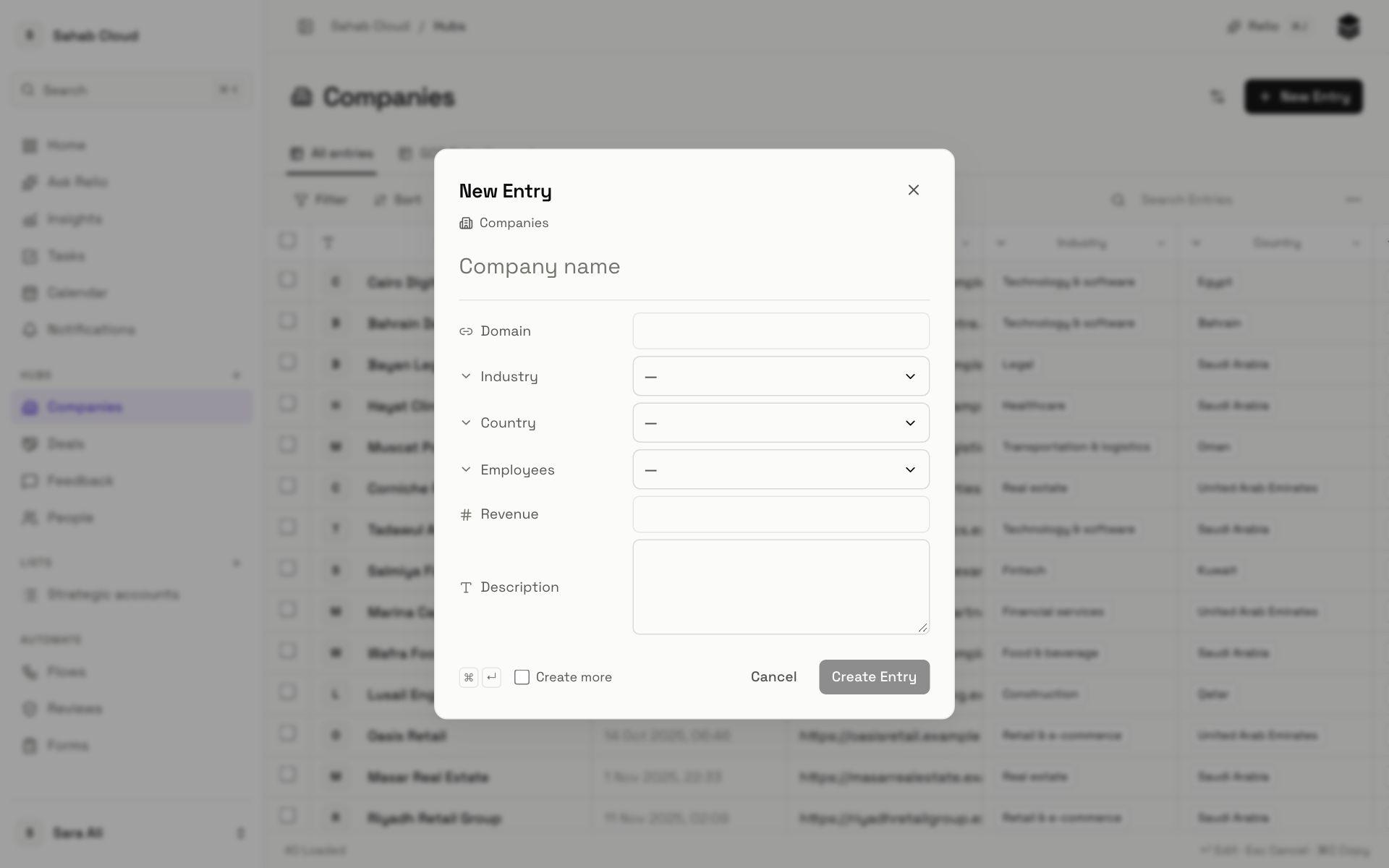
You can also create an Entry while linking: when you pick a company for a person and it does not exist yet, choose Create “{name}” right there.
Editing values
Click a cell, or select it and press Enter, to edit. Press Enter again to save, or Esc to cancel. Each Signal type has its own editor — a date picker for dates, a menu for choices, a member picker for people.
If someone else changed the same Entry since you opened it, Relio tells you instead of overwriting their change. Reload the value and edit again.
The preview
Click the ↗ beside an Entry's name — or right-click its row and choose Preview — to preview it beside the table. The table keeps its place, so you can work through a list of Entries one after another with Next Entry and Previous Entry.
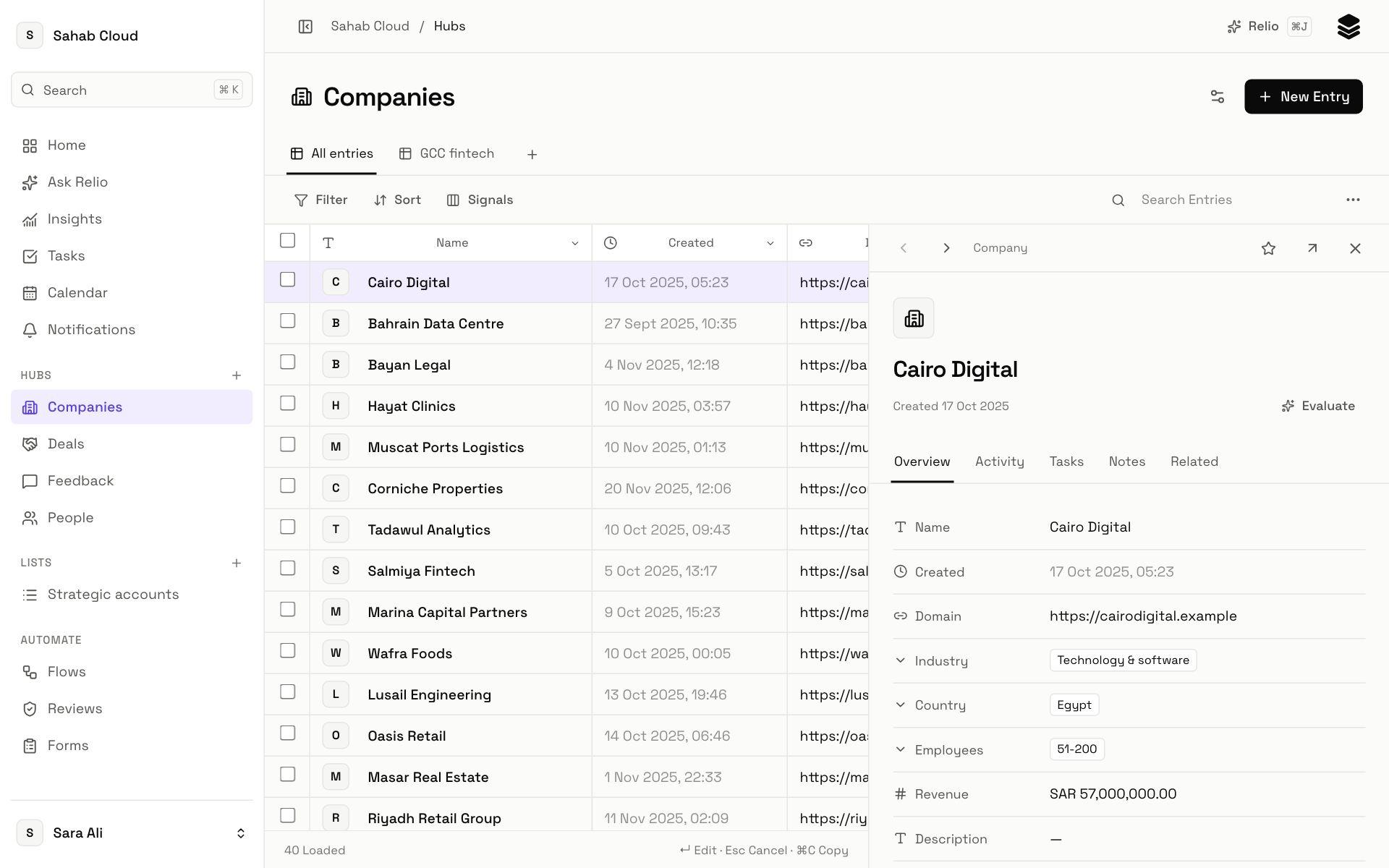
Along the top of the preview: Previous and Next, the Entry's Hub, a star for Favorites, ↗ to open the full Entry, and × to close. Then five tabs:
| Tab | What it shows |
|---|---|
| Overview | Every Signal, editable in place; its Links; the Lists it is on, with Add to List; and its latest activity. |
| Activity | The full timeline, where you log notes, calls and meetings. |
| Tasks | Tasks linked to the Entry. |
| Notes | Only the notes. |
| Related | Every linked Entry, grouped by Link, with Add Link. |
On a phone, the preview opens as a sheet over the table.
The Entry's page
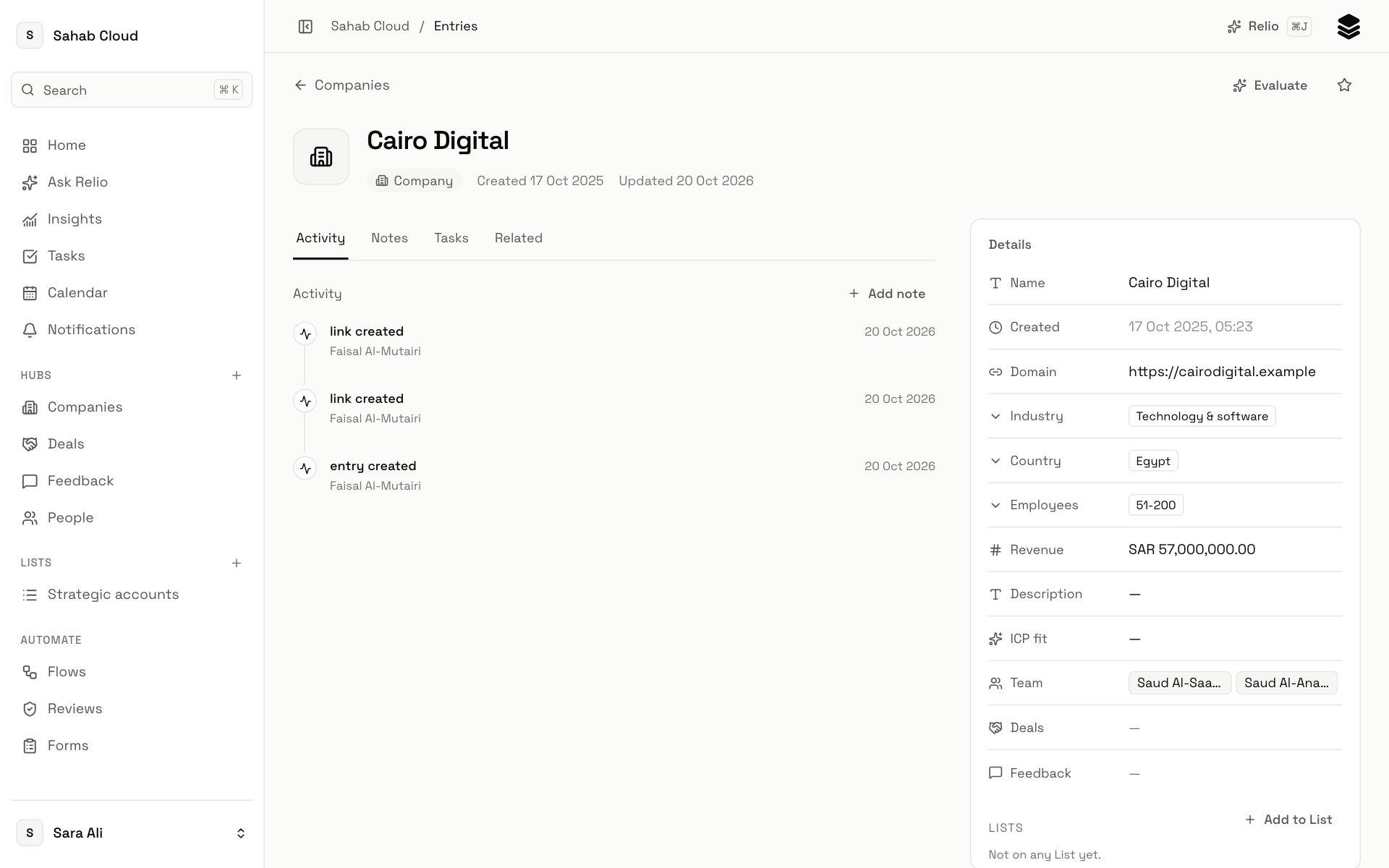
Open full Entry shows the whole page, with four tabs:
| Tab | What it shows |
|---|---|
| Activity | The timeline: notes, calls and meetings logged, and changes to its Signals. |
| Notes | Notes on the Entry, newest first. |
| Tasks | Tasks linked to the Entry, open and done. |
| Related | Every Entry linked to it, grouped by Link. |
Logging activity
In the preview or on the page, add to the timeline as a Note, Call or Meeting. Logged activity is shared with everyone who can see the Entry, and can start a Flow — "when a meeting is logged with a Company, create a follow-up Task".
You can delete an activity you logged; it disappears from the timeline for everyone.
Favorites
Star an Entry to keep it under Favorites in the sidebar. Favorites are yours alone and are kept in this browser, so they do not follow you to another computer.
AI Signals on an Entry
If the Hub has AI Signals, the preview shows Evaluate, which asks Relio AI to fill them in for this Entry now rather than waiting for its next change.
Deleting Entries
Tick the Entries in the table and choose Delete. Deleted Entries disappear from every List, View and linked Entry.
Copying Entries
Tick Entries and choose Copy to copy their visible columns, tab-separated, ready to paste into a spreadsheet.
Checked against Relio on 29 October 2026