Signals
Every Signal type and when to use it, creating and editing Signals, and the difference between hiding a column and changing a Hub.
A Signal is one piece of information that a Hub records about every Entry: an email, a stage, an amount, a date. In a table, each Signal is a column; in the preview, it is a row under Details.
Because every Signal has a type, Relio knows how to edit it, check it, filter it and add it up. Choosing the right type is the most useful decision you make when setting up a Hub.
Signal types
| Type | Use it for | Filter with |
|---|---|---|
| text | Short text: a job title, a city | is, contains, starts with, ends with, is any of |
| long_text | Paragraphs: a description, background | contains, does not contain |
| An email address; checked when entered | as text — ends with finds a domain | |
| phone | A phone number | as text |
| url | A web address, like a company's domain | as text |
| number, integer, decimal | Counts and measures; integer for whole numbers | is, greater than, at least, less than, at most, between |
| currency | Money, in one currency you choose, e.g. SAR | as numbers |
| percentage | A share, like a deal's probability | as numbers |
| date, datetime | A day, or a day and time | as numbers, plus before and after |
| boolean | Yes or no | is, is not |
| select | One choice from a set: Stage, Industry | is, is not, is any of, is none of |
| multi_select | Several choices: Tags, Services | has, has any, has all |
| user | A member of your workspace: Owner, Account manager | is, is not, is any of |
| location | An address or place | is empty, is not empty |
| ai_flag, ai_choice, ai_score | Filled in by Relio AI. See AI Signals | as yes/no, choice and number |
Every type can also be filtered with is empty and is not empty.
Every Hub also has Name, and Relio keeps Created — when the Entry was made — for you. You cannot edit Created, and it is never required or unique.
Creating a Signal
Only workspace admins can change a Hub's Signals.
- Open the Hub and click the Settings icon next to New Entry.
- Click Create Signal.
- Enter the Name, e.g. *Renewal date*.
- Optionally, set the API slug — the name used by integrations and the API. Relio makes one from the name; set it yourself if the name is in Arabic.
- Choose the Type. For currency, enter the three-letter currency code. For select and multi-select, enter the options one per line.
- Tick Required if every Entry must have a value, and Unique if no two Entries may share one.
- Click Save.
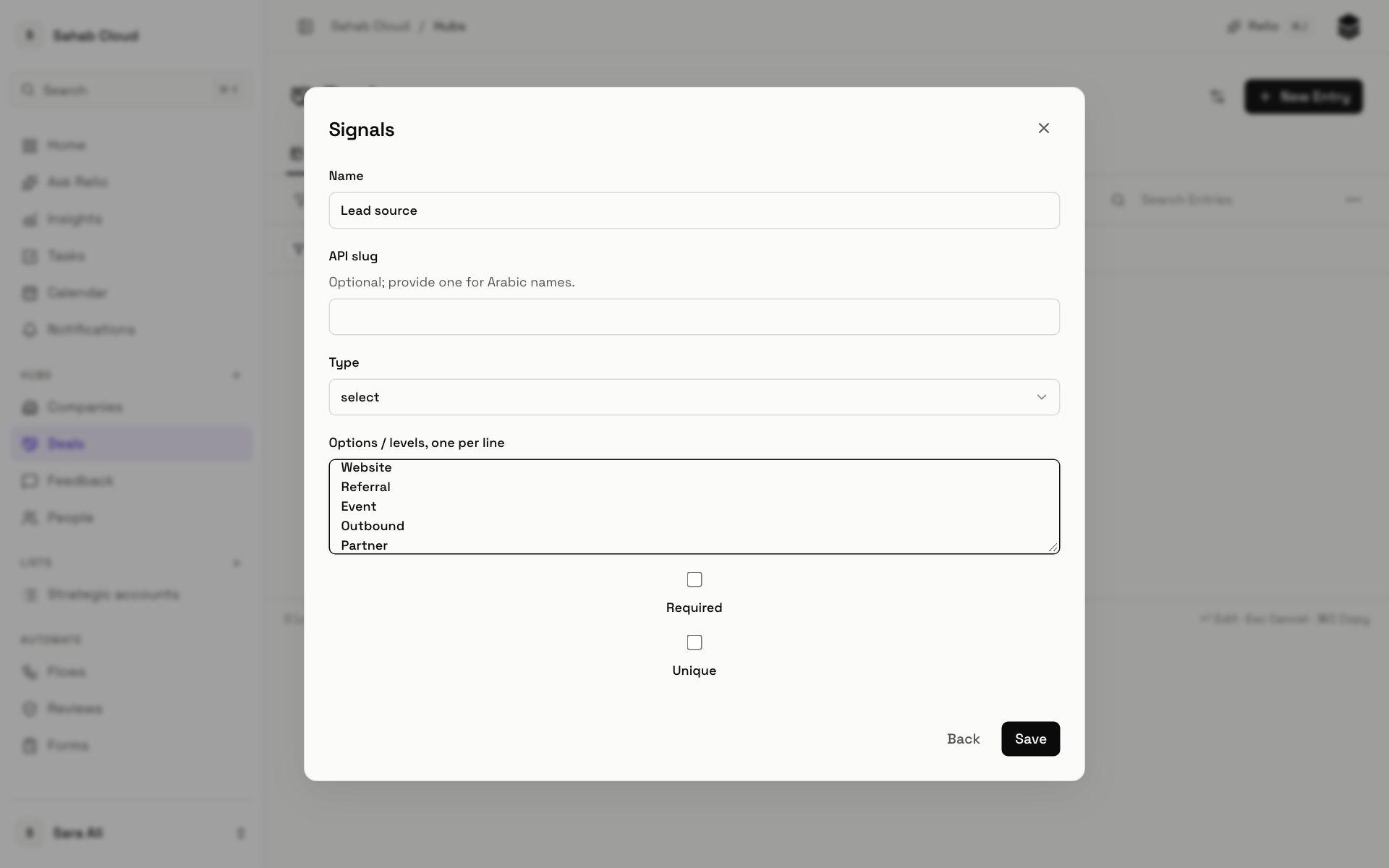
The new Signal appears as a column in the table, empty for existing Entries.
Required and Unique
Required means a new Entry cannot be created without the value, and an existing value cannot be cleared. Entries created before you made it required keep working; fill them in as you go.
Unique means no two Entries in the Hub may have the same value — useful for email addresses or company domains. If existing Entries already share a value, Relio tells you which ones collide, and nothing changes until you fix them.
Editing a Signal
In the Signals dialog, click a Signal to rename it or change Required and Unique. Its type cannot be changed; create a new Signal of the type you need and move the values across — for example, select the Entries, Copy them, paste into a spreadsheet, and import it back matched on a unique Signal.
Renaming a Signal never breaks Views, filters or Flows — they refer to the Signal itself, not its name.
Hiding a column is not changing the Hub
The Signals button in the table's toolbar only chooses which columns *you* see in this table or View — anyone can use it, and it changes nothing for anyone else unless they save it into a View. The Settings icon changes the Hub itself, for everyone, and is for admins.
Signals on Lists
A List can have its own Signals, like *Stage* or *Kickoff date*, which belong to the process rather than the Entry. They are created the same way, from the List's Settings. See Lists.
Checked against Relio on 29 October 2026