Navigating Relio
A tour of the screen: the sidebar, the command menu, the top bar and the shortcuts that save the most time.
Relio's screen has two parts: the sidebar on the left, where everything lives, and the page on the right, where you work. This article goes through both, then the shortcuts worth learning on day one.
The sidebar
From top to bottom:
| Area | What it is for |
|---|---|
| Workspace name | Shows which workspace you are in. If you belong to more than one, click it to switch. |
| Search (⌘K) | Opens the command menu: jump to any Hub, List, View or Entry, or start creating something. |
| Home | Your Hubs, your Lists and the Tasks assigned to you, on one page. |
| Ask Relio | Ask a question about your workspace in your own words. See Ask Relio. |
| Insights | Reports on your pipeline and customers, for admins and whoever they share them with. |
| Tasks, Calendar | Your work and its due dates. See Tasks. |
| Notifications | Tasks assigned to you, reviews waiting for you, finished imports, form submissions and credit warnings. |
| Favorites | Entries you have starred, for quick access. |
| Hubs | Every Hub in the workspace. Admins see a + to add one. |
| Lists | Every List. Click + to create one. |
| Automate | Flows, Reviews and Forms — shown to workspace admins. |
| Learn Relio | Your getting-started checklist, the tour and these guides. |
| Imports, Integrations, Settings | Bringing data in, connecting other tools, and your account and workspace settings. |
At the bottom, your name opens a menu with Settings and Sign out.
You can collapse the sidebar with the panel button at the top of the page to give a wide table more room. On a phone, the sidebar opens from the menu button instead.
The command menu
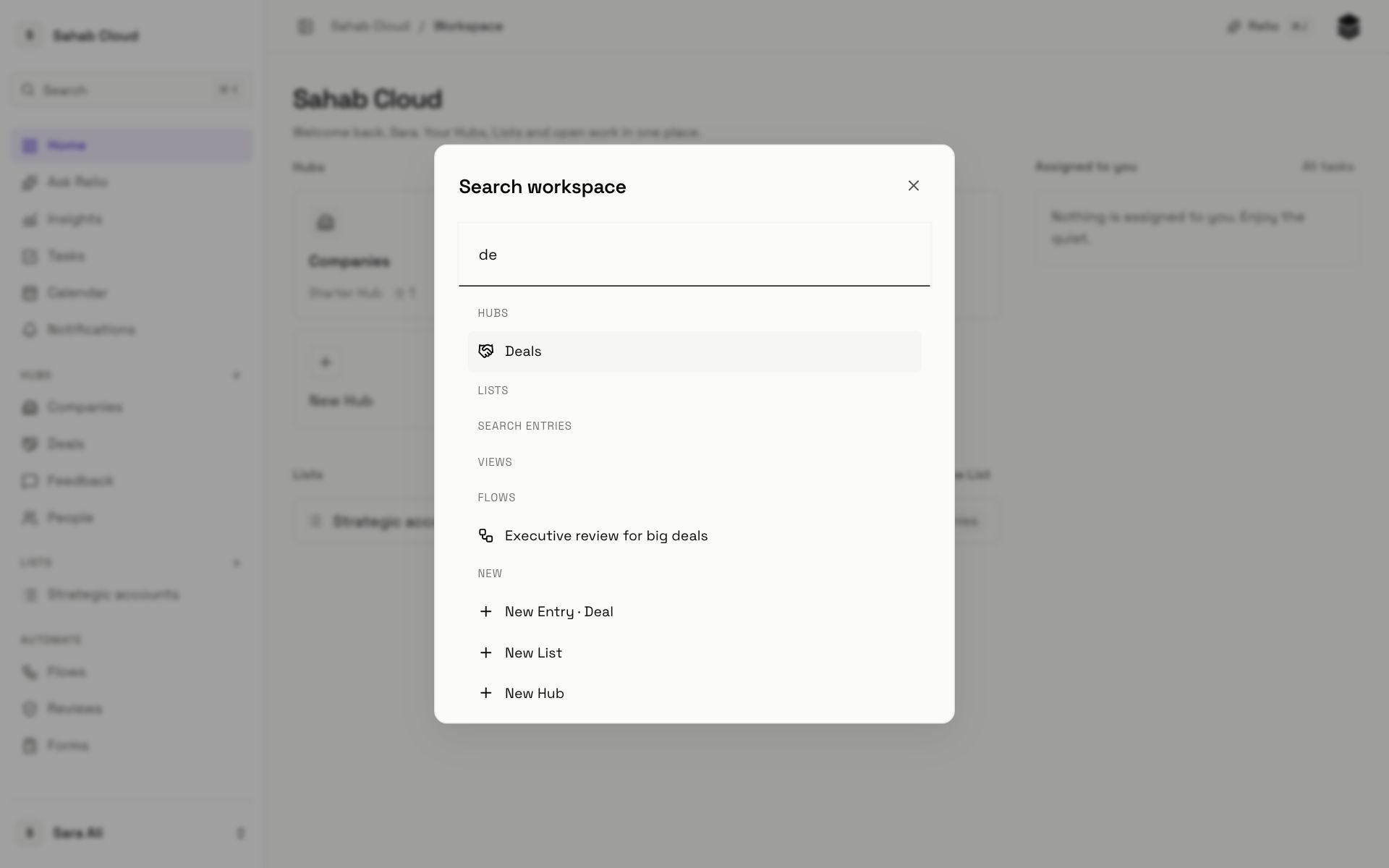
Press ⌘K (Ctrl+K on Windows), or / anywhere outside a text box, to open the command menu. Start typing and it finds:
- Hubs, Lists and saved Views by name.
- Entries, searched by name across your Hubs.
- Actions: New Entry in any Hub, New List, and for admins New Hub and New Flow.
- Ask Relio, Learn Relio and Settings.
The top bar
Above every page:
- The breadcrumb shows where you are: workspace, then section.
- The panel button collapses or expands the sidebar.
- Relio (⌘J) opens Relio AI beside the page you are on, so you can ask about what is in front of you without leaving it.
Working in a table
Hubs and Lists open as tables. A few keys make them fast:
| Key | What it does |
|---|---|
| Enter | Edit the selected cell. |
| Esc | Cancel the edit. |
| ⌘C | Copy the selected cell. |
| ↗ beside a name | Preview the Entry beside the table. |
The preview keeps your place in the table. Use its arrows to move to the next or previous Entry, or Open full Entry for the whole page. Read about Entries.
Home
Home is where Relio opens. It shows your Hubs as tiles, your Lists with the Hub each one tracks, and Assigned to you — your unfinished Tasks with their due dates, overdue ones marked. New to Relio, you will also see New to Relio? with the tour and Learn Relio; hide it once you no longer need it.
Checked against Relio on 29 October 2026